Combine maps, notes, and exports for a revision session
Line MindMap · · Study workflow
Keep your overview concise, place detail in notes, and choose the right export for review or sharing.
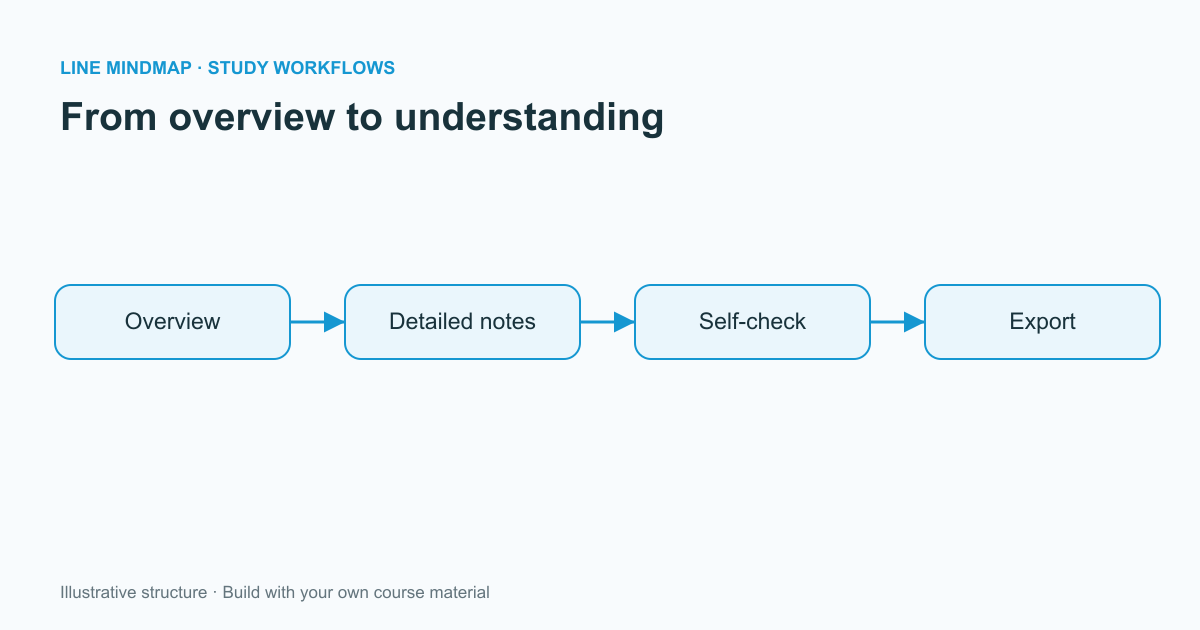
A useful revision workspace has more than one level of detail. The overview should help you locate an idea quickly, while the supporting explanation should remain available when you need it. Line MindMap's node notes let you keep those two roles separate without forcing every paragraph onto the canvas.
Keep the canvas selective
Use short node labels for the concepts you want to recall. Place definitions, explanations, references, and questions in the associated note. A node should act as a clear signpost; it does not need to contain the entire lecture.
Open the note panel when reviewing a topic. If you need to keep one note visible while working elsewhere, use the pin control. This can help when a source note or organizing question applies to several branches. Unpin it when you want the panel to follow the selected node again.
Plan a repeatable review
Choose a small set of branches for each session. Try to explain the content before opening the detailed notes. Then compare your explanation with the source-based version and write down what needs correction. The purpose is to make gaps visible, not to make the diagram look finished as quickly as possible.
- Decide which topic you will review.
- Recall the key relationships before reading the notes.
- Check uncertain details against your course resources.
- Update the diagram and save a backup after meaningful changes.
Choose an export for its purpose
A PNG is convenient for placing a diagram into a document or presentation. SVG preserves scalable graphics. PDF is useful for printing and reviewing a stable layout. Text and Markdown exports emphasize the outline rather than the appearance; they are not complete substitutes for every image or rich-text note.
Keep an editable copy whenever you share a visual export. A picture can be easy to distribute but difficult to correct. Make the date or revision status clear in your own study material if classmates may continue using an older copy.
Know where your work is saved
The existing mind map and table workspaces support browser-local use and optional Google Drive workflows. Local storage belongs to the current browser and can be removed when browsing data is cleared. The flowchart workspace saves locally and offers JSON backup and import. Check that saving succeeded, and download important work before changing devices or clearing browser data.