Use comparison tables for medical revision
Line MindMap · · Study workflow
Choose meaningful comparison headings and build tables that reveal differences without becoming crowded.
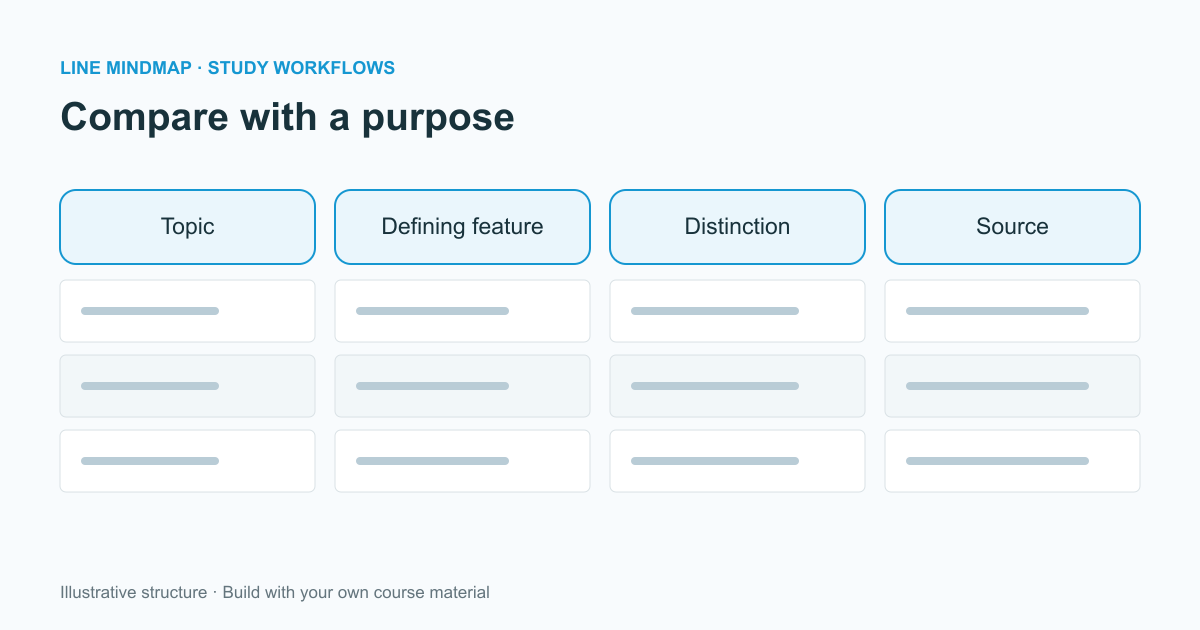
Some study questions are easier to answer in columns than in branches. When you need to compare several topics using the same set of attributes, the table workspace can make missing information and inconsistent categories easier to notice.
Choose the question first
Begin with a question such as “which features do I need to distinguish these topics?” Then choose headings that serve that question. A table for comparing definitions may need only a term, an explanation, and an example. A more detailed course comparison may need additional columns, but every extra column should have a clear purpose.
Keep comparable information in the same column. Mixing definitions, exceptions, and commentary in one column makes the table harder to scan. Use the table notepad for a longer explanation that applies to the whole comparison.
Build a small first version
Start with a few rows and fill them from your course resources. Add rows or columns as the structure proves useful. Line MindMap lets you edit cells directly and add more tables within the workspace, so a large subject does not have to become one enormous grid.
- Use one topic per row.
- Keep the wording parallel across comparable cells.
- Mark missing information explicitly instead of treating a blank as “none.”
- Include a source column or a clearly organized source note.
Format to guide attention
Reserve emphasis for the distinctions you need to notice. A light row background can group related entries; bold text can identify a short key phrase. If every cell is brightly colored, the styling stops communicating priority. Images can help when appearance is the point of comparison, provided they remain large enough to read and you have permission to use them.
Use the table to find gaps
Read down each column before reading across the rows. This exposes changes in terminology, uneven detail, and missing entries. If one row needs a long explanation, consider whether the topics really belong in the same comparison or whether that explanation belongs in notes.
Table exports include PDF through the browser print dialog, HTML, CSV, Markdown, and text. Choose CSV when you need plain cell data for another spreadsheet, and PDF when layout is the priority. Rich formatting and images are not preserved equally in every export format. Inspect the result before sharing it and retain the editable workspace for future corrections.